Create people reports
You can generate and print reports to get a list of information on people's scheduled dates and positions, blockout dates, tags, and contact information.
Select the People page in the top navigation.
Apply filters to narrow down the list of people that you want in the report.
(Optional) Hover over a person's icon and check the box that appears to include them in the report. Otherwise, all of the people on the list will be included by default.
Select the 🖨️ print icon at the top of the list.
Select a report type from the Select Report dropdown.
Adjust your formatting settings using the additional dropdowns.
Select Submit to generate your report.
Tip
If you have web coding knowledge, you can also create custom reports.
See the sections below for descriptions of the built-in People reports.
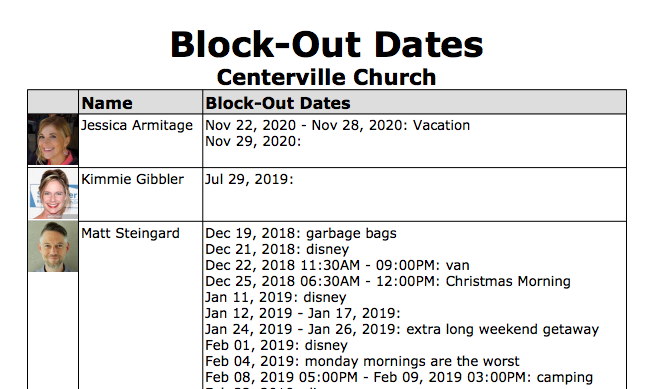
This report shows the blockout dates for each person in the list.
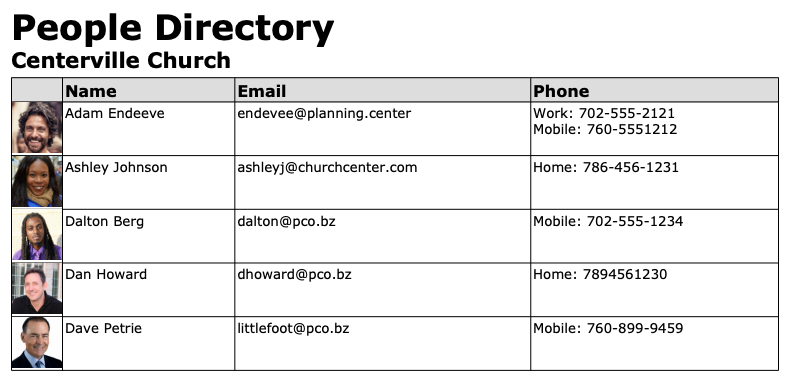
This report gives you printable list of the people that you've selected in alphabetical order, including their email addresses and phone numbers that are in the system.
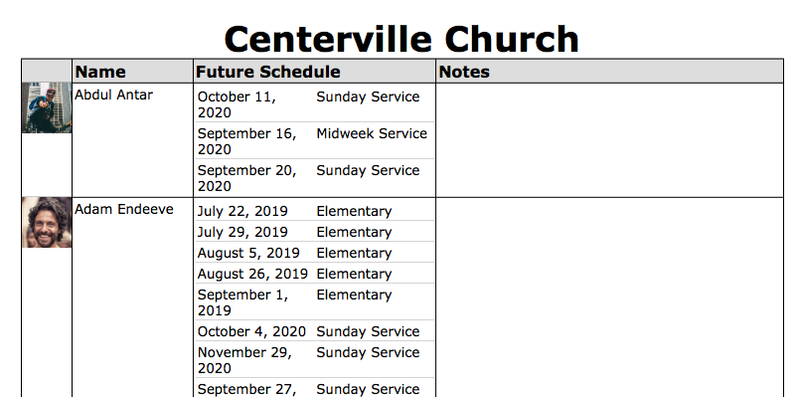
This report shows any future dates that people are scheduled for.
There is another version of this report (Future Schedules - With Positions) that includes positions, which is slower to run.
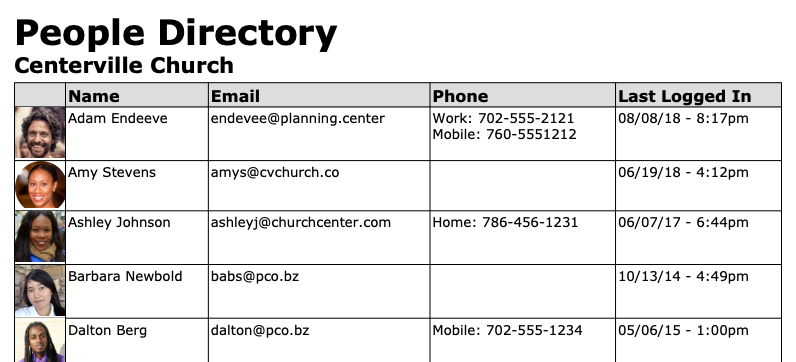
This report shows your people's names, email addresses, phone numbers, and then the last date/time they logged into the system.
This is often helpful for leaders who want to see if their people have logged in to block out dates or check schedules.
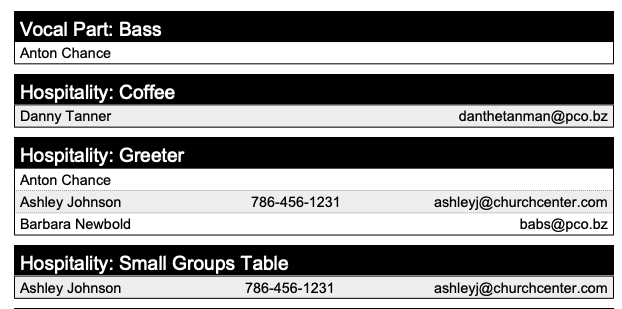
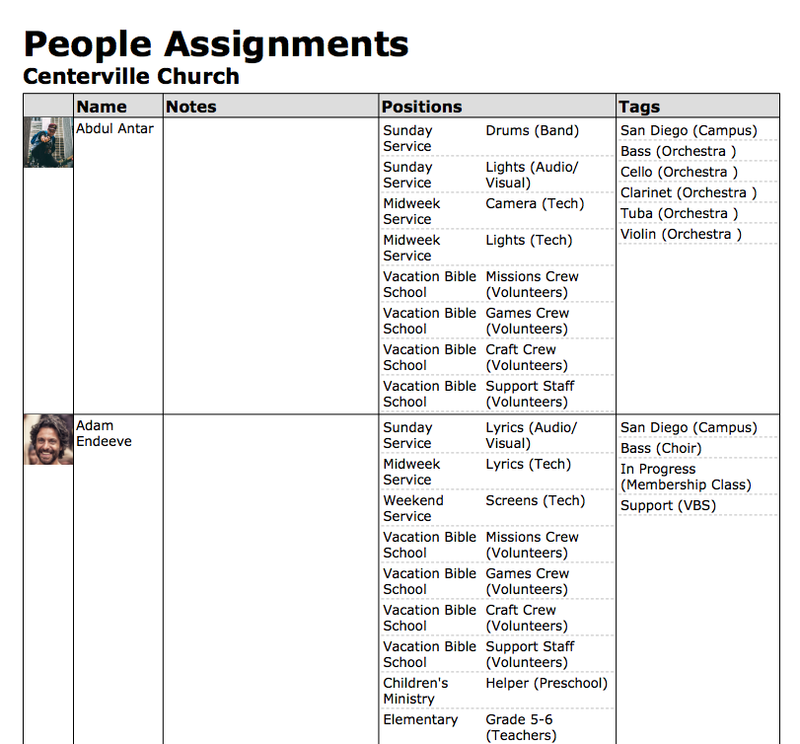
This report lists all your people along with their Team (Position) and Tag assignments.
This reports shows a printable list of Tags and who is assigned to each one.