Charge a late fee
If you want to discourage people from registering past a specific date, you can charge a late fee by setting up an early bird discount or creating an add-on. In addition, you could set up a non-refundable deposit using partial payments.
Set up early bird discounts
You don't need to charge a late fee when you use early bird discounts. The standard price becomes the highest price that someone will pay, which rewards early registrants rather than punishing late registrants.
To create an early bird discount, you'll first need to create a selection type. Once a selection type is created, you can set up the discount.
In Registrations, select the Signups page in the top navigation.
Choose the signup you're working on from the list.
Select the Configuration tab.
Select the Discounts tab.
Select the New discount button.
Enter a name for the discount. This will show on both Registrations and Church Center.
Select the amount type you need from the dropdown, either Flat rate or Percentage, and choose the amount.
Set the discount type to Early Bird.
In the Options box on the right, choose if you'd like the discount to apply to add-ons and set the date and time when the early bird discount will expire.
Select Only certain selections from the Available to dropdown if you only want this discount to apply to certain selection types.
(Optional) If you chose Only certain selections, check the boxes next to the selections you'd like to include.
Select Save.
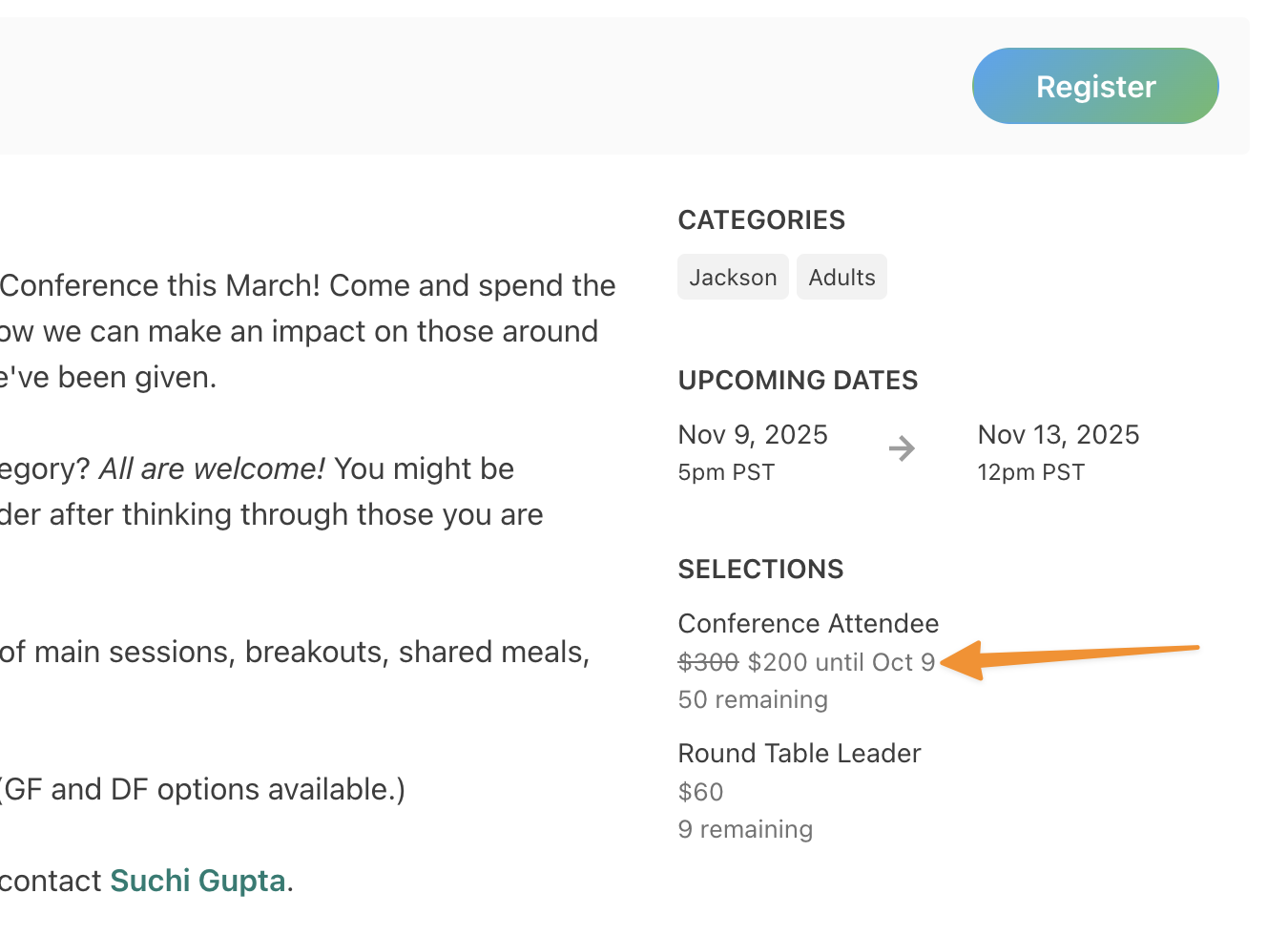
Once the early bird discount is created, registrants will see both prices listed on the signup page on Church Center. The full price will be crossed out, and the early bird price and the date the discount expires will be mentioned.
Create an add-on late fee
If you need to manually charge a late fee, make sure it's clearly communicated on the signup page, then create a late fee as an add-on. Keep the add-on hidden on Church Center so only an administrator or editor can apply it.
In Registrations, select Signups in the top navigation.
Choose your signup from the list.
Select the Configuration tab.
Select the Add-on options tab.
Select the New add-on button.
In the Name field, enter the add-on's name as you want it displayed to attendees.
In the Price field, add the price of the late fee per attendee. This price will be added to the registration total.
In the Options section on the right, make the add-on Hidden so the add-on will not be visible to registrants on Church Center.
Select Save.
Apply the add-on to the attendee's registration
If an attendee registers late, add the late fee add-on to their registration, and send a balance due reminder email.
In Registrations, select Signups in the top navigation.
Choose your signup from the list.
Select the Registrations tab.
Select the person who registered late from the attendee list.
On the registration page, scroll down to the attendee's registration information box. This is located under the Registration contact and the Registration questions sections.
Select the Edit button inside the Add-ons section of the attendee's registration information.
Check the box for the late fee add-on in the popup.
Select Save.
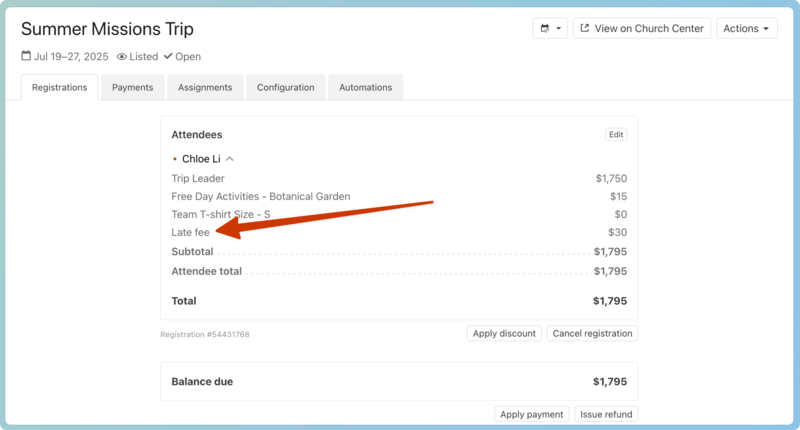
Expand the attendee's detailed charges in the Attendees box at the top of the page to see the late fee listed.
After the late fee is applied, send a balance due reminder email so the registrant can easily pay the fee.