Manage form submissions
Use forms to collect information from people inside and outside of your church. Monitor engagement, check for spam responses, and print individual submission details from the form's Submissions tab.
Submissions tab
The number on the Submissions tab increases as people fill out the form. Type a person's name to search for their submission, and then select that person to view their completed form.
Select the Submitted date dropdown at the top of the list to filter submissions by a date range. This filter sticks so you don't have to select it again when you come back to this form.
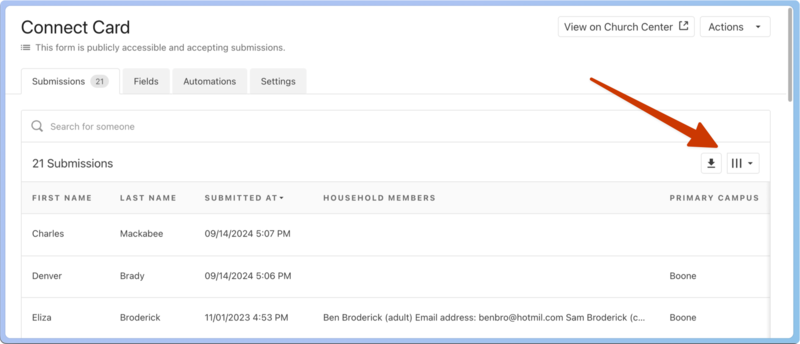
Select the download arrow icon in the top right to export a CSV file of all form submissions. This export will match your current view, including any filters.
Select the three vertical lines icon to filter which fields display in the Submissions tab.
 |
Form submissions cannot be edited. If an update is needed, ask the person to submit the form again or make the profile changes directly on their profile.
Tip
If form submissions create duplicate profiles, check out these duplicate prevention tips.
View spam submissions
Public forms are targets of spam, so they include built-in spam protection to prevent bots from making submissions. As an extra precaution, you can manually add suspicious email addresses to your spam list to prevent multiple submissions from those addresses.
Spam submissions are deleted after 90 days. To view submissions from email addresses marked as spam:
Select the Forms page from the top navigation.
Select Spam submissions in the left sidebar.
Select an email address to view the specific submission, or select the form to view all the submissions for that form.
Print form submissions
While viewing an individual submission, select the 🖨️ print icon to save it as a PDF or print it.
In addition to submitted information, printed submissions show the form's title, field titles and descriptions, and section headers.