View event notes
Group leaders can record helpful and essential information in their event notes using Church Center. Administrators and group type managers can view those notes in Groups on a web browser to keep the group's membership up-to-date, add prayer requests to a newsletter, or see why an event was canceled.
For a specific group
Follow the steps below to view notes for a specific group:
Select the Groups page from the top navigation in Groups.
Select the group you'd like to view.
Select the Attendance tab in the left sidebar.
Scroll down to the Attendance totals at the bottom of the page. If notes were taken, a notes icon appears on the attendance total for that day.
Select the 🗒️ notepad icon to view the notes for that day.
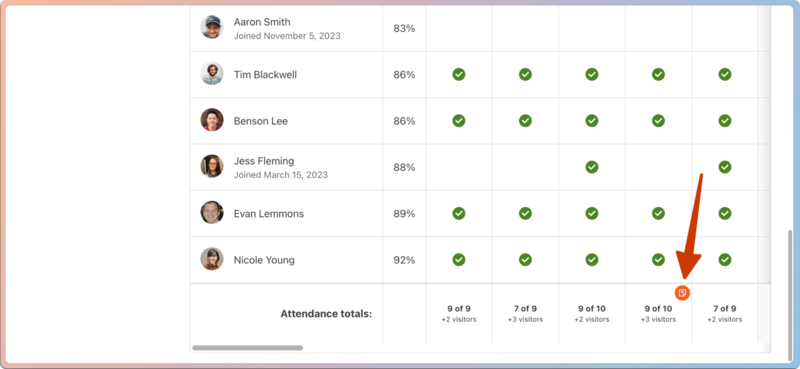 |
For multiple groups
Follow the steps below to review notes across multiple groups:
Select Events from the top navigation in Groups.
(Optional) Select the All groups (any type)dropdown and choose a specific group type.
(Optional) Select the Filter dropdown to view events by status, campus, or any tags you've created.
Use the left and right arrows in the calendar view to go to a specific date.
In the Notes column, select Event notes to open the popup with all group leader notes.
Take action on event notes
You can use tasks to keep track of important information as you complete other Planning Center projects, like taking prayer requests recorded in a group's event notes and adding them to a prayer newsletter task!
Follow the steps below to add event notes to a task:
From the Event notes popup, highlight the notes you want to action on.
Press
CMD+CorCTRL+Con your keyboard to copy them.Select the X in the top right of the popup to exit.
Select To do from the toolbar on the right side of the page.
Choose from an existing task or use the ➕ plus sign to create a new one.
Press
CMD+VorCTRL+Von your keyboard to paste your notes into the text box.Make any other desired changes, like changing the due date.
To finish, select Save changes in the bottom right corner.