End-of-year giving
For most churches, the end of the calendar year is a busy time for charitable giving. Soon after, in January, churches are often busy sending annual statements to their donors.
This guide has tips for making sure you are ready to receive those last-minute donations and send statements at the beginning of the year.
Review your Payments account
In the fall, Stripe (the processor that powers Planning Center Payments) typically audits its system to make sure each account has the required information and verification details in place (as required by US law). If a large donation comes in and your Payments account has missing verification requirements, the account could be locked. In some cases, payment processing could even be disabled.
Before generating statements, look for any red warning banners at the top of Giving notifying you that something needs to be addressed. Select the link inside that banner to head to the Settings tab on the Payments page in Account settings to review the problem with your account. Your Payments account owner can provide any missing information or update account details to resolve the issue.
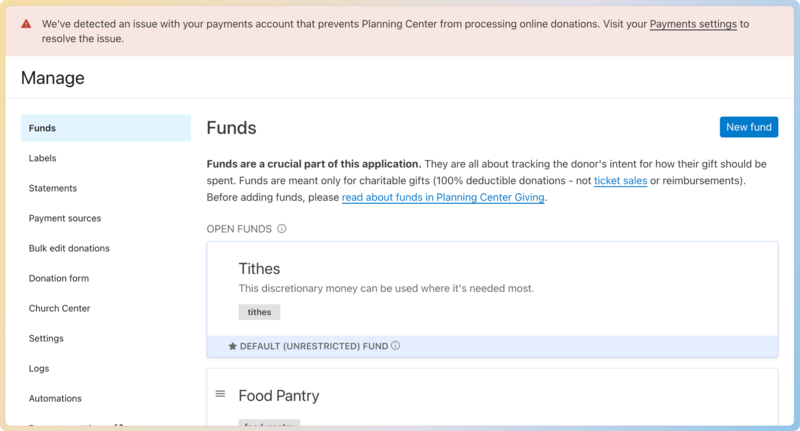
If you see a warning message:
You need to act immediately or risk having your Payments account locked. That's the last thing you want during the busiest weeks of the year!
You've been missing email messages from Stripe. Ask your Payments account owner to visit the Settings tab on the Payments page in Account settings to verify that the emails listed are accurate and have inboxes that are being actively monitored. If the emails need to be updated, contact the Planning Center support team to request an account ownership transfer.
Manage last-minute donations
There is usually a spike in donation activity during the last hour of the year. Here's how to handle last-minute donations in Giving and what to expect:
"Received at" date: Any successful donation with a "received at" date that falls within the statement's date range will be included in the statement.
Online donations: Credit card, debit card, and ACH bank transfer donations all get a "received date" when the donor presses the Give $ button. If that happens before the clock strikes midnight in your local timezone, then the donation will be counted for the previous year. Online donations cannot be backdated.
Donations by mail: The US Treasury Department's rule (Treasury Regulation 1.170A-1(b)) states that a donation is considered delivered when it's postmarked by the USPS. So the "received at" date you enter should be the postmarked date on the envelope. As always, be aware of post-dated checks when entering a check donation.
Make sure your donors know that you will enter checks based on the postmarked date, not the date on the check.
Recurring donations: Donations set to occur on December 31st will be processed in the early morning of December 31st. If the recurring donation fails:
Card donation: The system will immediately alert the donor that their donation didn't go through.
ACH bank transfer donations: Banks take multiple days to indicate that an ACH payment has failed. If an ACH donation is set to trigger on the 31st, and the donation fails, the donor has missed the window for that donation to count for that year.
Update donor information
Annual donor statements are usually sent sometime in January. There are a couple of things you might want to do before then:
If you have couples at your church that would like to receive a single, combined donor statement, you'll need to join those donors. You might want to make an announcement and give people a way to contact the church to make this request. This is a great way to use People forms!
Encourage donors to log into their Church Center profiles and make sure their mailing address is up-to-date, especially if you plan to issue physical statements. They can do this online or via the Church Center mobile app.
Prepare and send donor statements
After the new year, and once you've completed all of the above tips, it's time to send statements to your donors!
Important
It is essential to wait until all donations from the previous year have finished processing and batches have been committed to issue statements. Donations still in transit or a part of uncommitted batches will not be included in donor statements, even if they were received during the set statement date range.
From the Statements tab on the Manage page in Giving, select Create a new statement to get started.
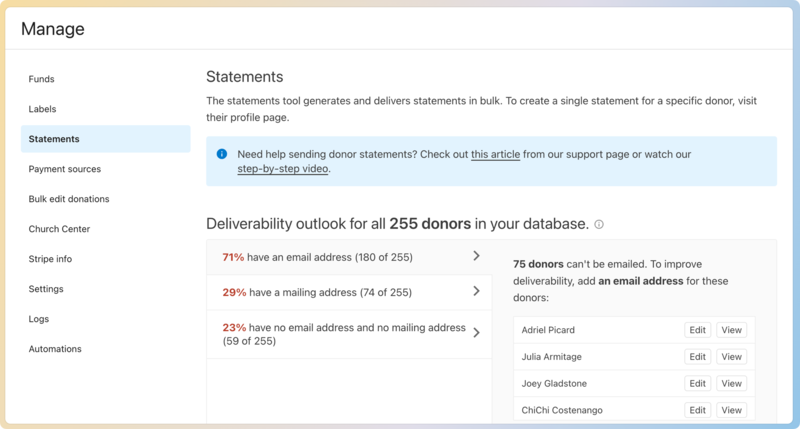
Follow the instructions in the Create and share donor statements article to prepare statements and deliver them to donors.
After statements have been generated and issued, you may need to edit them. Refer to the Edit printed statements article for instructions.