Waitlist
If a signup has reached capacity, allow people to join a waitlist in case more spots become available!
Enable the waitlist
Waitlists can only be enabled if there is a capacity set for a selection type.
Select the Signups page in the top navigation.
Choose your signup from the list.
Select the Configuration tab.
Select Selection types on the left.
Check the Waitlist box next to each selection type for which you'd like to enable a waitlist. (Uncheck the box to disable the waitlist.)
Important
If someone has already selected the waitlist while registering, the box will be grayed out, and you cannot turn it off. To disable the waitlist, either promote attendees from the waitlist or cancel their registrations.
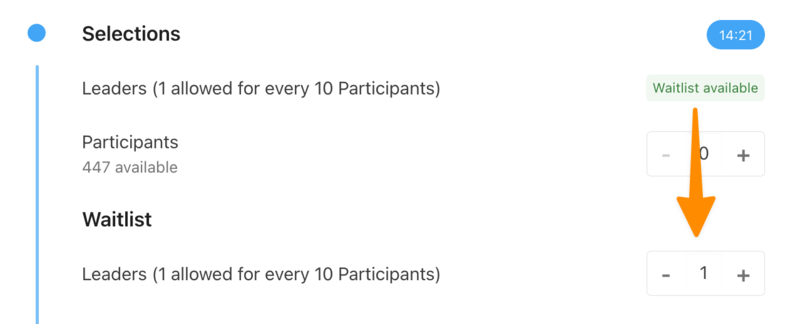
If someone wants to register for a selection type that is at capacity, they can add the number in their party or the attendee to the waitlist.
 |
Promote waitlist registrations
As people sign up, they will be added to the Waitlist tab. If spots become available for their chosen selection(s), you can promote them from the waitlist to refill those spots.
To promote a registration:
Select the Signups page in the top navigation.
Choose your signup from the list.
Select the Registrations tab.
Select Waitlist on the left.
Choose an attendee from the list to promote.
Check the box next to the name of the attendee.
Select Promote.
Here's a two-minute video of what that setup process looks like:
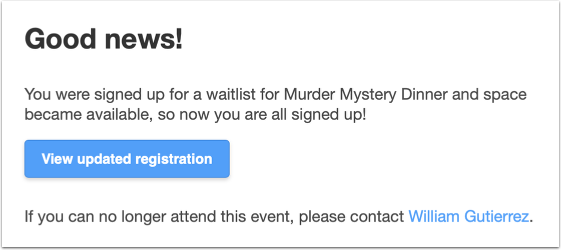
When you promote a registration, the registration contact will receive an email letting them know they've been given a spot.
Notify your waitlist
In addition to manually promoting people, administrators can notify everyone on the waitlist when spots become available. This allows attendees to register as space opens up.
Select the Signups page in the top navigation.
Choose your signup from the list.
Select the Registrations tab.
Select Waitlist on the left.
Select the Actions dropdown in the top right.
Select Notify waitlist of available capacity from the dropdown.
Select Yes, notify them all!
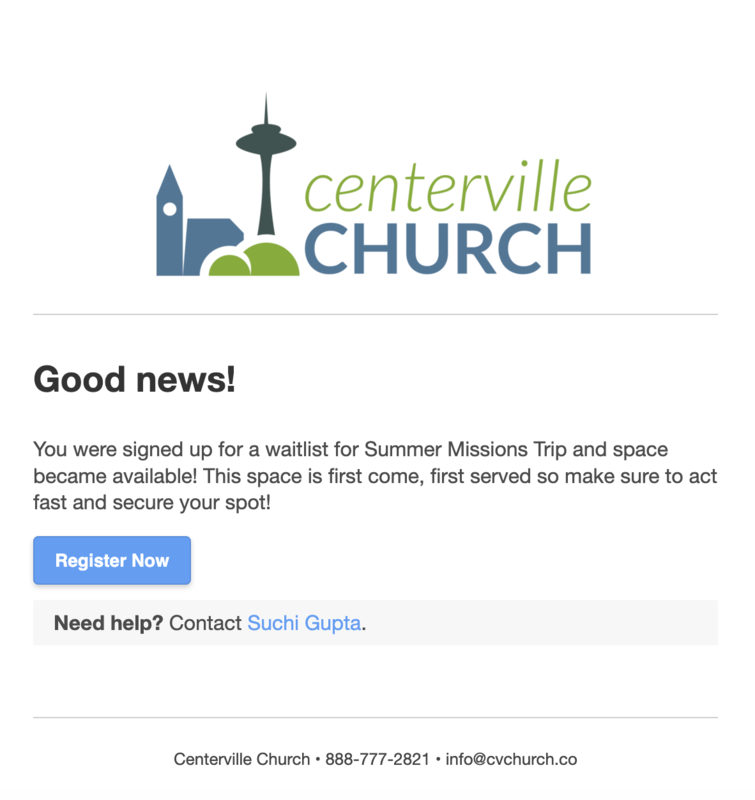
Waitlisted attendees will receive an email notifying them that additional space is available and providing them with a link to register. Registration for newly listed capacity is first come, first served, which means waitlisted attendees need to act quickly once they are notified.
 |