Add categories
Allow people to filter your signups in Church Center by adding categories and assigning them to signups.
Tip
You can filter by these categories on Church Center, or find people who registered for any signup in a specific category.
Create a category
Before you can add categories to your signups, you need to create them!
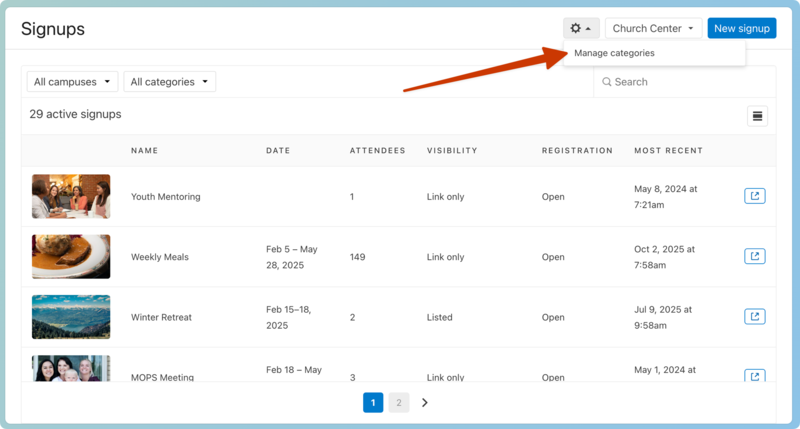
Select the Signups page in the top navigation.
Select the ⚙️ settings icon in the top right.
Select Manage categories from the dropdown.
Type the new category name in the Add new category box.
Select the ➕ plus sign.
Select the ✏️ edit icon to edit the name of an existing category.
Select the 🗑️ delete icon to delete a category.
Select Done to close the popup.
Important
Campuses can be added by an organization administrator in Account settings.
Add categories to a signup
Once you've created your categories, assign them to your signup.
Select the Signups page in the top navigation.
Choose the signup you're working on from the list.
Select the Configuration tab.
Select About on the left.
Select Edit in the Campuses & Categories box.
Choose a category from the dropdown in the Categories section.
Select Save.