Bulk update workflow cards
If you use the Add to Workflow list automation, some workflows will acquire several cards simultaneously. To manage these cards more easily, you can select multiple cards to quickly complete or skip steps, remove them from the workflow, reassign them to another person, or snooze them.
Select the Workflows page from the top navigation in People.
Select the workflow from the list.
To select individual cards: Hover over a person's profile picture or initials and select the checkbox that appears.
To select all cards: Select the checkbox in the top left corner of the list.
Once you've selected a card, a set of buttons appears at the top of the list, allowing you to perform bulk actions on the selected cards. When you hover over a button, a label will appear to explain what that button does.
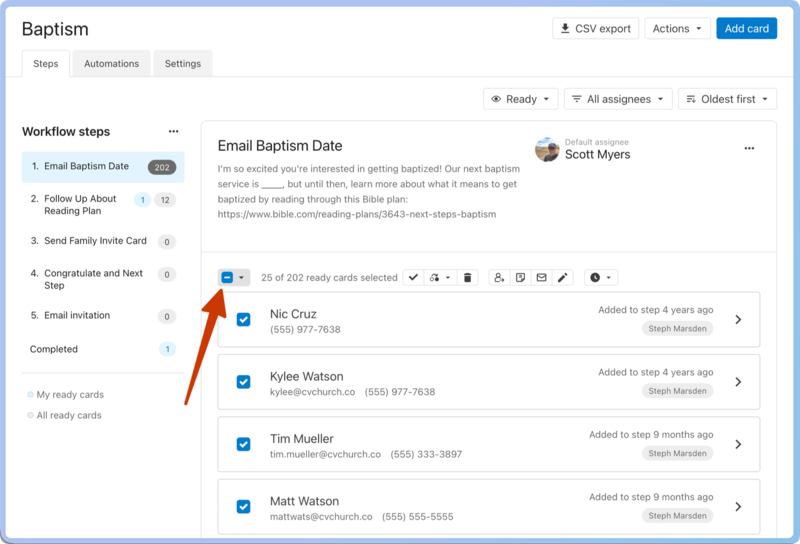
Reassign cards
Select the 👤 person icon to open a box in which you can type the name of the person who should handle the selected cards.
Select the person's name, and the cards will be assigned to that person.
Add an internal note
Select the 🗒️ notepad icon to add an internal note to the selected people's cards.
You can also choose to save the note to each person's profile.
Send an email
Select the ✉️ email icon to send an email to the selected people.
Enter your email or use an email template to fill the email with the information you want to send.
Apply an action
Select the ✏️ edit icon to open the Bulk action popup. Choose the action you'd like to apply to all cards, and fill out any necessary details.
The people in the cards will be updated, but the card will stay in the step.
Snooze cards
Select the 🕔 clock icon to choose how long to snooze the selected cards.
The card will be moved from the Ready section to the Snoozed section, and the assignee will be alerted at the selected time.