View a form in Church Center
People can fill out a form to update their profiles and submit information. Their submission will be saved in the form submissions tab, where an administrator can view the updated information.
From a form's page in People, select View on Church Center at the top of the page to go to the form on Church Center. You can see what your church members will see and share that link with anyone who needs to complete the form.
Any fields you've set as required will have a red asterisk. Once the form is submitted, a confirmation message and the submission details will appear.
Important
iOS devices must be running iOS 13 or later to open a form.
Select Get QR Code at the bottom of any Church Center web page to view and download the QR code for the page. Use this code for a church bulletin, a lobby poster, or an announcement slide. People can scan the QR code to go straight to this URL without typing it.

Tip
Print QR codes on Avery 22805 square stickers and put them in prominent places at your church!
Verification
Verification protects incorrect information from being entered into profiles, especially if an email address or phone number is updated since those are used for logging in to Church Center or Planning Center.
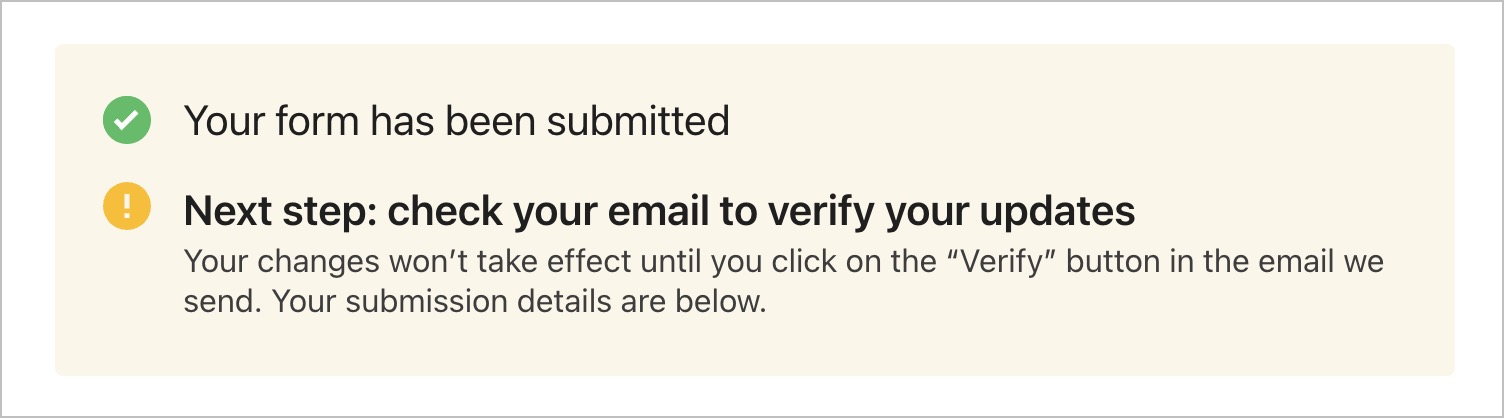
If someone fills out a profile field on a form, they will see a message after their submission asking them to check for a verification email at the primary email address on their profile to confirm what they entered is true.
 |
In the email, they must select the Yes, the displayed information is correct button to verify. Their profile will not be updated with the new information until they select that button.
You can determine if someone has verified information by reviewing their form submission and checking the Verified/Not verified indicator at the top of the page.
A person will not be sent a verification email if:
They're logged into Church Center on the web or app.
The updated profile field is the phone number listed in a different format, but the number matches.
The only profile field that has been updated is a note.