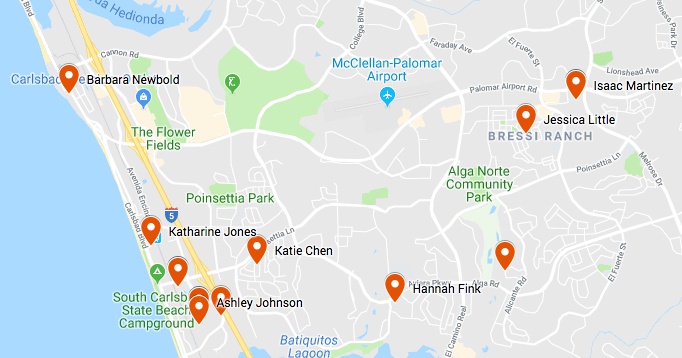
Create a map of addresses
If you need a map of people attending a small group, kids needing to be picked up by a van, or to track disaster zones, you can export information and import it into Google Maps.
Create a list based on the information you want.
On the Results tab, select the three vertical lines icon in the top right to open the column filter dropdown.
Select on the name and address columns to display.
Select the ⬇️ download icon at the top of the page to open the Export list to CSV popup.
Select the Only the currently visible columns option.
Select Generate CSV or Generate and send CSV.
Generate CSV: this is the option available to you if your list has fewer than 500 results. Your CSV file will download immediately.
Generate and send CSV: this is the option available to you if your list has more than 500 results. Your CSV file will be sent to you via email.
Once you open the file, combine the address, city, state, and zip code each into one cell, and delete any rows without an address. Follow these steps from Google to import it into Google Maps. You can then add directions and share the map with others.
If you have any issues with the import, make sure your file fits these stipulations from Google.