Update data with CSV file
If you have data that needs updating but don't want to make changes to individual profiles or use a bulk action, follow these steps to export your data from Planning Center, update it, and reimport it. Profiles will be updated with the information from the reimported CSV file.
Export data and update fields
Export the data from your Planning Center database or list to get the most up-to-date information, then download the CSV file.
Open the file in your spreadsheet program of choice. Programs like Excel (Windows) and Numbers (Mac) have a find-and-replace feature that helps you update multiple pieces of information simultaneously.
Delete all columns you're not updating.
Warning
Always keep the four main name fields, First Name, Middle Name, Last Name, and Name Suffix, and the remote_ID field if you use it, as well as the column names, to match them when you import. If you do not use Middle Name and Name Suffix, you will get new duplicates for those existing profiles rather than having them automatically updated.
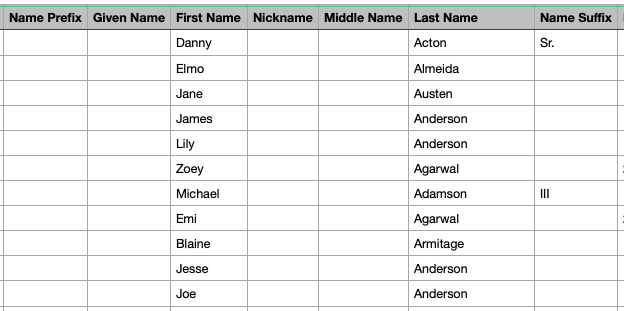
Make your edits to the data that needs updating. Ensure your data matches the fields in People and their accepted answers for a smooth import.
If you're not sure which custom values you've created for fields, check your custom fields page.
When updating fields (other than contact information) via an import, the reimported CSV removes current selections.
Fields that contain only one data point, such as dropdown, text, or date fields, will be updated with the information from the CSV.
If you import multiple items into a checkbox field, separate the responses with a pipe (|), semicolon, or newline character. All items must be included in the reimported CSV.
To tag an existing profile with a Remote ID, the four main name fields (First Name, Middle Name, Last Name, and Name Suffix) and the email address need to match. If there's no email address on either the profile or the record in the CSV, a duplicate will be created and then must be merged.
Once your data is updated, save it as a Comma-Separated Values (.csv) file.
Import new data
Now that your data is updated and saved as a .csv file, you're ready to follow along with the import a CSV file in People article.