Link multiple devices to control page-turning
You can link multiple devices using the sessions feature, so that when you turn pages on the main device, all connected devices will stay in sync. To run a session, your device must be connected to the internet.
Important
The sessions feature is not available for Web Music Stand. It is only available in the Music Stand mobile app.
Start a session
To start a new session from your device:
Tap the menu icon (three horizontal lines) in the top left to open the sidebar.
Select the Sessions tab.
Tap Start a new session to allow people to connect to it.
After starting your session, see a list of connected devices on the Sessions tab.
Select the Plans tab.
Select a plan date from the list to open it.
When you scroll down on the plan, your top bar will turn green to indicate that you're controlling the session.
Tap a song from the service order to open the PDF on your device and all connected devices.
All connected devices will sync whenever you turn the page.
Close a session
When you're ready, you can close the session:
Tap the menu icon (three horizontal lines) in the top left to open the sidebar.
Select the Sessions tab.
Tap Close Session.
Allow control
If you've already started a session, you can allow a new device to control the page:
Tap the menu icon (three horizontal lines) in the top left to open the sidebar.
Select the Sessions tab.
Tap the toggle next to a device name to give that person control over the session.
Go back to the plan page. When you scroll down on the plan, your top bar will turn red to indicate that someone else is controlling the session. The top bar of the controlling device will turn green.
When you're ready, you must close the session on your device. The new controlling device cannot close the session.
Connect to a session
To connect to an existing session:
Tap the menu icon (three horizontal lines) in the top left to open the sidebar.
Select the Sessions tab.
Tap Connect to a session.
Choose the controlling device you'd like to join in the Available Sessions list.
After connecting to a session, select the Plans tab from the sidebar.
Select a plan date from the list to open it.
When you scroll down on the plan, the top bar will turn red to indicate that you're connected to a session.
When you're connected to a session, any actions taken on the controlling device will be shown on your device. If you are logged in to the same account as the controlling device, your device will refresh when new annotations are made on the master device.
Disconnect from a session
When you're ready to disconnect from a session:
Tap the menu icon (three horizontal lines) in the top left to open the sidebar.
Select the Sessions tab.
Tap Disconnect.
Control indicators in PDF view
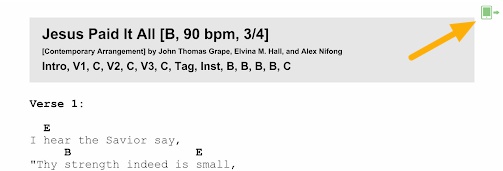
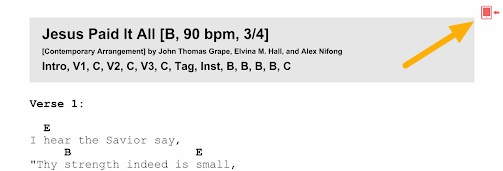
The PDF view doesn't have headers, so to tell whether you are controlling a session or connected to another device, look for the icons in the top right.
The green icon has an arrow going away from it, indicating you are the controlling device.
 |
The red icon has an arrow coming toward it, indicating you are connected to another device.
 |