
Use the media player
If audio files are attached to your songs, you can listen to them and loop specific sections while you practice.
To open the media player:
Tap the menu icon (three horizontal lines) in the top left to open the sidebar.
Select the Plans tab.
Select a plan date from the list to open it.
Tap the ▶️ play button in the top right to open the media player. Any compatible audio files will load in the playlist at the bottom of the screen, and the first file in the list will begin playing.
Tap the file name to open the full playlist view.
Use the media controls to play, pause, or skip through songs on the playlist.
Drag along the scrubber to skip forward or backward in the currently playing file.
Close the audio player by tapping the 🔼 upwards arrow icon in the top right of the menu bar.
Loop audio
Tap the menu icon (three horizontal lines) in the top left to open the sidebar.
Select the Plans tab.
Select a plan date from the list to open it.
Tap the ▶️ play button in the top right to open the media player.
Tap the 🔁 loop button to play the entire song over again once it finishes.
To loop a specific part of the audio file, drag the loop handles to set the in and out points of your loop.
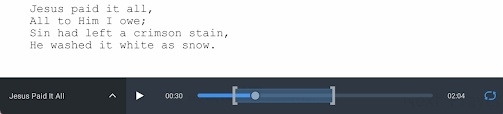
To stop looping, tap the 🔁 loop icon again.
Close the audio player by tapping anywhere outside of it. If you didn't stop the music, it will keep playing.