Cancel or delete an event
If an event is no longer taking place, cancel it! There are two ways to update your calendar:
Cancel an event: Unless your event was created by mistake, this is the best option for events that are no longer taking place. When you use this option, the event remains on the calendar (both online and in subscriptions) but is labeled as "Canceled" so that members are aware. Events can be canceled from the Groups administrator pages or Church Center.
Tip
If you want to cancel an event in Church Center, follow the steps in the Create and manage events article.
Delete an event: This is permanent and removes all traces of the event from the calendar. If attendance was taken and visitors were listed, that information is also permanently erased. Events must be deleted from the Groups administrator pages.
To remove an event that was promoted from a connected Calendar event, you must open the original Calendar page and toggle the Promote setting.
Cancel an event
Select the Groups page in the top navigation.
Choose a group from the list to open the individual group page.
Select the Events tab in the left sidebar.
Select an event name from the list to open the event page.
Select Cancel event in the top right.
(Optional) To notify members that the event has been canceled, check the Notify group members option and edit your message if needed.
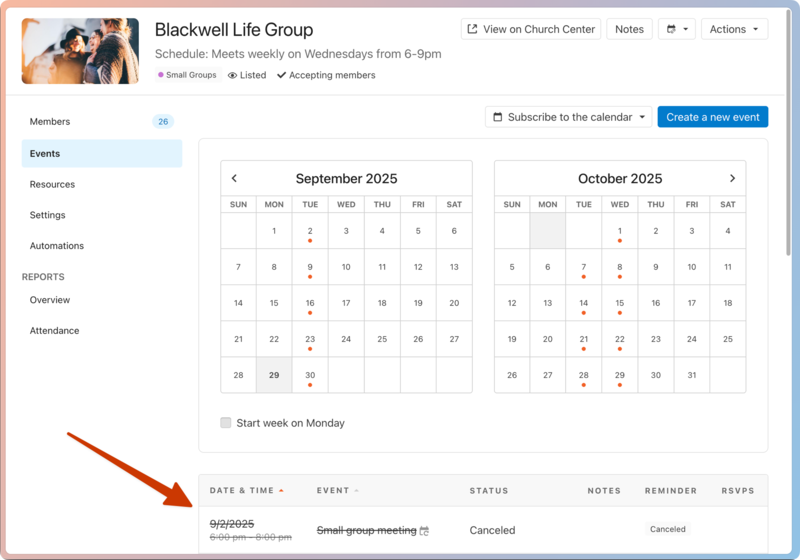
Select Cancel event in the popup. The event will remain on the group calendar with a line through it, and the attendance column will show Canceled.
Restore a canceled event
If you change your mind after canceling an event, you can restore the event:
Select the Groups page in the top navigation.
Choose a group from the list to open the individual group page.
Select the Events tab in the left sidebar.
Select a canceled event from the list to open the canceled event page.
Select Restore event in the top right.
Delete an event
Warning
Deleted events cannot be recovered.
Select the Groups page in the top navigation.
Choose a group from the list to open the individual group page.
Select the Events tab in the left sidebar.
Select an event name from the list to open the event page.
Select Edit event in the top right.
Go to the bottom of the page.
Select Delete event. If your event repeats, you can choose to Delete only this event or to Delete this event and all occurrences after it.