Kiosk mode for desktops
Put a station in kiosk mode to prevent anyone from exiting the station. You can also force the app to launch directly into Kiosk Mode every time you start your computer.
Toggle kiosk mode
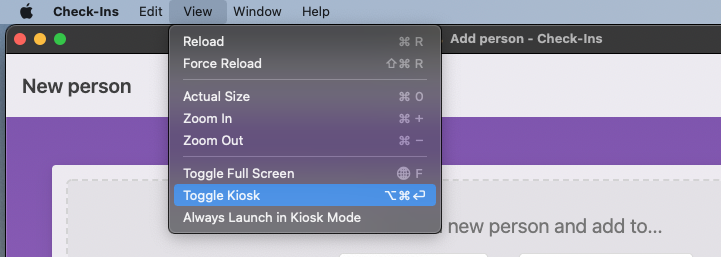
From the View menu, select Toggle Kiosk, and the station will take over the whole screen. Select Always Launch in Kiosk Mode to make sure the station launches in Kiosk mode every time it's opened.
Tip
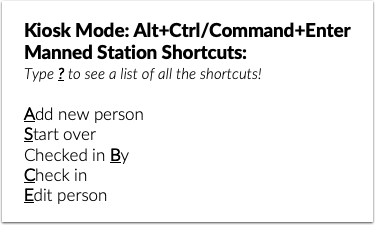
You can toggle back to normal mode by pressing the following key combinations:
Windows (Alt+Ctrl+Enter)
Mac (Alt+Command+Enter)
For tablets without external keyboards, put the Onscreen Keyboard in full layout mode, to see all of the keys.
Print out the tips below and put them on your station!
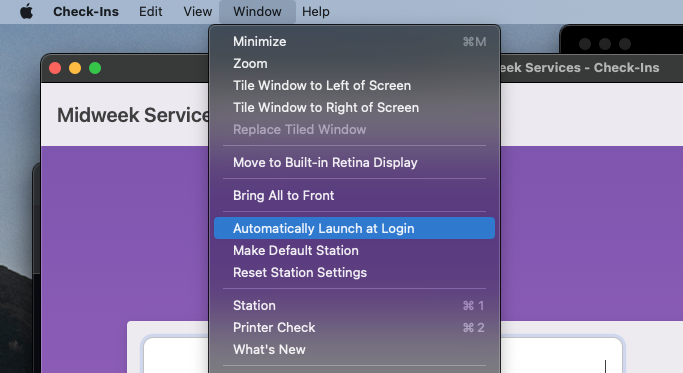
Automatically launch station
From the Window menu, select Automatically Launch at Login, and the app will open when you start your computer.