
Share your plan
You can allow someone without a Services profile to access a public view of the plans you've created and generate special "Permalinks" that will take you to a specific plan based on a date.
Tip
Before sharing your plan, select which information you'd like to show or hide on the plan using the Public View section of the service type's settings page.
Follow the steps below to access a plan's share settings.
Select the Plans page in the top navigation.
If you have multiple folders, select the folder that contains the service type you're working with.
Select a plan from the service type you're working with.
Select the Order tab.
Select the share button in the top right corner.
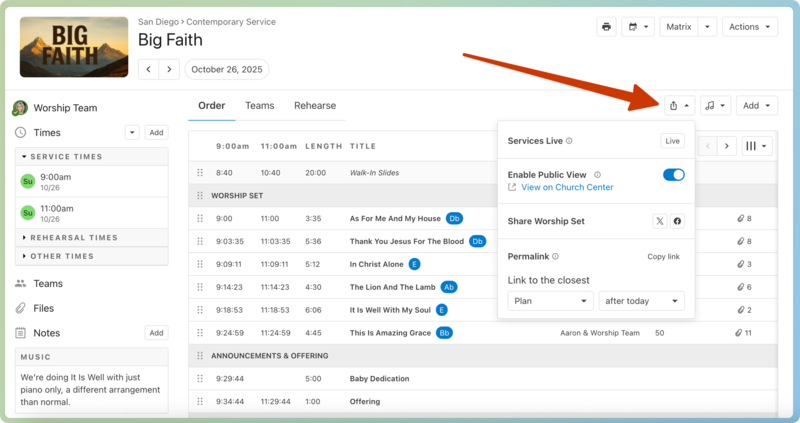
Toggle on the Enable Public View option in the dropdown.
Share a public plan page
From the share button dropdown, select View on Church Center to view the public plan page.
You can share a public plan by copying the URL from the public plan page and providing the link to others or using a permalink if you don't want to open the public plan page every time.
If any of your songs have public attachments, anyone viewing this page can select the platform next to the song to listen to it on that platform.
Share on X or Facebook
When you choose the X icon, a box with a pre-composed post opens that includes all the plan's songs, a hashtag, and a shortened Public Plan page URL. You can edit the message if you'd like, then log in to X and post it.
When you select the Facebook icon, similar editable information opens in a Facebook post. When people follow the link, they will go to the public plan page.
Share a permalink to specific public plan pages
Permalinks take you to a different plan based on a specific date, like a link on your church's website that always takes people to last week's public plan.
Choose one of the following link types from the dropdown on the bottom left of the Permalink section:
Plan links to a plan that requires a person to log in and have permission to view the plan.
Public View links to a plan that anyone with the link can view as long as public view is enabled.
Services Live links to Services LIVE for people with permission to view the plan.
Use the dropdown in the bottom right of the Permalink section to select a period before or after the current date.
If you choose Public View before today, you can put the link on your church website and name it Last Week's Service. That link takes people to the closest public plan before the current day so they can view any available song links.
Choose Services Live after today for the computer that runs Services LIVE and either bookmark it or set it as the home page so the person responsible for the computer can access it.
Select Copy link and paste it on another site or make it a bookmark for quick use.