Subscribe to your Services calendar
If you want to see your confirmed plans in your personal calendar, subscribe to a webcal feed of your Services calendar. You can view plan times on your personal calendar but can't edit the calendar event.
Subscribe on the web
The process for subscribing to your Services calendar on the web depends on whether you plan on using Apple Calendar or Google Calendar.
Share to Google Calendar
Select the My Schedule page from the top navigation in Services.
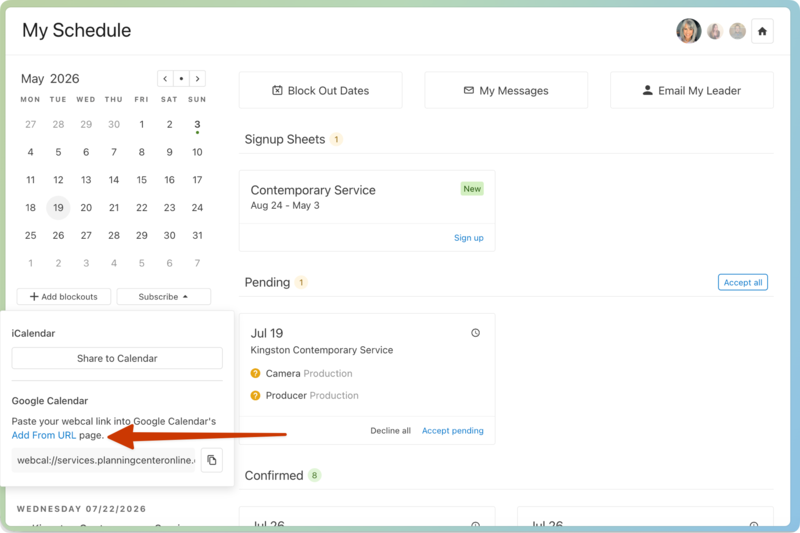
Select the Subscribe button in the bottom right of the calendar.
Select the copy button next to the webcal URL to copy it to your clipboard.
Select the Add From URL link to open the From URL page in Google Calendar.
If you aren't already logged in, log in to the Google account to which you'd like to add your Services calendar.
Paste the Services webcal URL into the calendar URL field.
(Optional) If you'd like to see blockout dates in your Services calendar, modify the webcal URL.
Select Add calendar to finish adding your Services calendar to Google Calendar.
Modify the URL to include blockouts
By default, your Services calendar shows all of your confirmed plans without your blockout dates. If you want to subscribe to your schedule with blockout dates, you can modify the webcal URL before subscribing.
Whether you're using Apple Calendar or Google Calendar, modify the webcal URL to match your desired calendar type as bolded in the table below:
Calendar Type | URL |
|---|---|
My Schedule without blockouts (default) | webcal://www.planningcenteronline.com/ical/pnb/your-calendar-code |
My Schedule with blockouts | webcal://www.planningcenteronline.com/ical/p/your-calendar-code |
Subscribe on a mobile device
If you've downloaded the Services Mobile app to your device, you can add your Services schedule to Google Calendar (Android) or Apple calendar (iOS).
Troubleshooting
When you subscribe to your Services calendar, the event information is pulled into your personal calendar, and you cannot edit those events in your personal calendar. However, you can add notes or invite others to the event:
From Google Calendar, you can email people to invite them to the event and print or copy the event.
From iCal, click the link to view the plan that you are scheduled for.
Make sure you're logged in to the Google account that has the calendar where you want to add your Services schedule.