Common automations
Create an automation to update profiles, add people to groups, assign tasks, and more! Check out how to create some common automations below.
Automate creating and assigning tasks
A lot is going on at your church, and that means tasks for your staff! Instead of manually tracking these actions, you can automatically create and assign tasks.
Create an automation to add a task from the Automations tab.
When a person...: Select the activity that triggers the task automation.
Then perform an action in...: Choose Home as the product and Add a task from the dropdown.
Task name: Name your task.
Add task to: Select where to add the task.
Owner: If you're adding the task to someone else's inbox, search for that person's name. If you're adding it to a specific task list, select the list from the dropdown and add an assignee.
Days after task is created: If the task should be completed by a particular date, enable Set task due date and add the number of days before the task is due.
Once the automation runs, the assigned task appears in the assignee's inbox or task list, and they are notified of a new task. The task will have a link to the appropriate resource and, in some cases, a link to the related person's profile.
Add people to a workflow
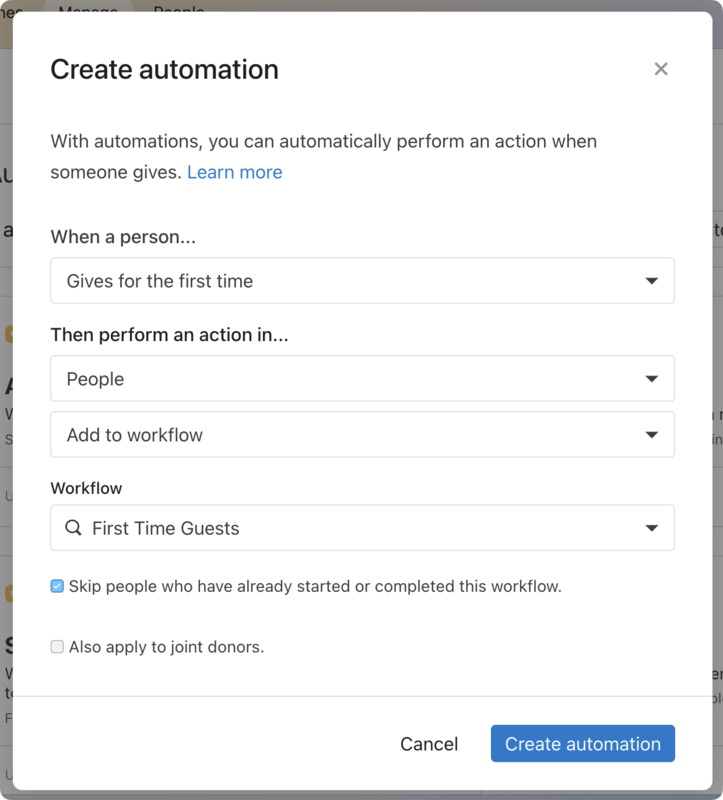
If you want to follow up with a person after they cancel a registration, donate for the first time, or are removed from a team, you can use an automation to add them to a workflow.
Add a team member to a group
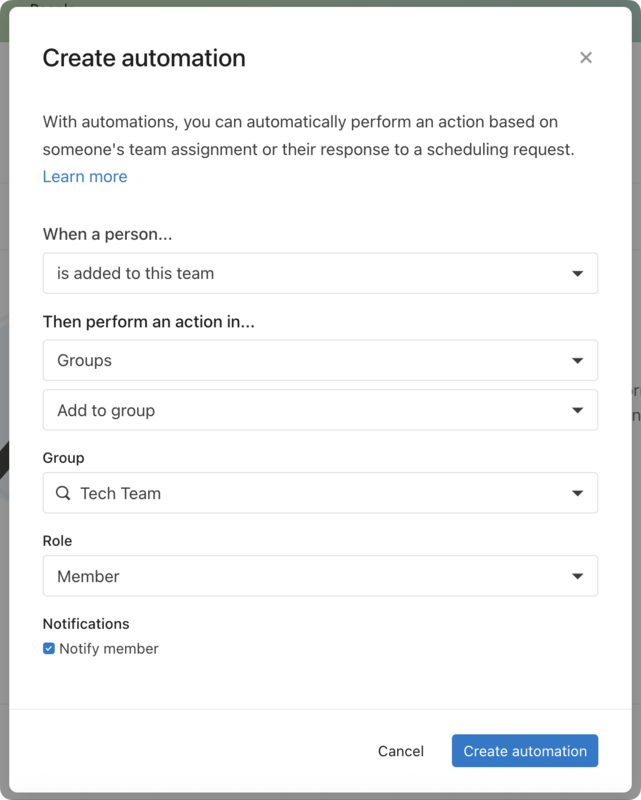
If you use Groups to connect with your Services team members, you can set up an automation that adds someone to a group whenever they're added to the corresponding Services team.
Tip
If you check the Notify member box, the team member will receive an email stating they've been added to a new group.
You can also create the other side of this automation: when someone is removed from a team, set the automation to remove them from the group.