Use event tabs during an event
During an event, editors can access the event's Overview and Check-Ins tabs on a web browser. Use these tabs to view data or make check-in changes, such as adding more check-ins, updating their type, or removing duplicates to ensure the data is clean.
Check out the table below for a comparison of what you can do with event tabs on a web browser versus on a station.
On a web browser | Station |
|---|---|
Overview tab shows the number of volunteers, people checked into locations, etc. | A roster station shows classroom leaders who and how many people are checked into a location |
Check-Ins tab shows what time a person's check-in was confirmed on a roster station. | A roster station shows a list of confirmed and unconfirmed people on the Here tab (no timestamps). |
Can check in people when event is over | Can print labels |
Does not show households | Cannot change a person's location once checked in |
Use the Overview tab
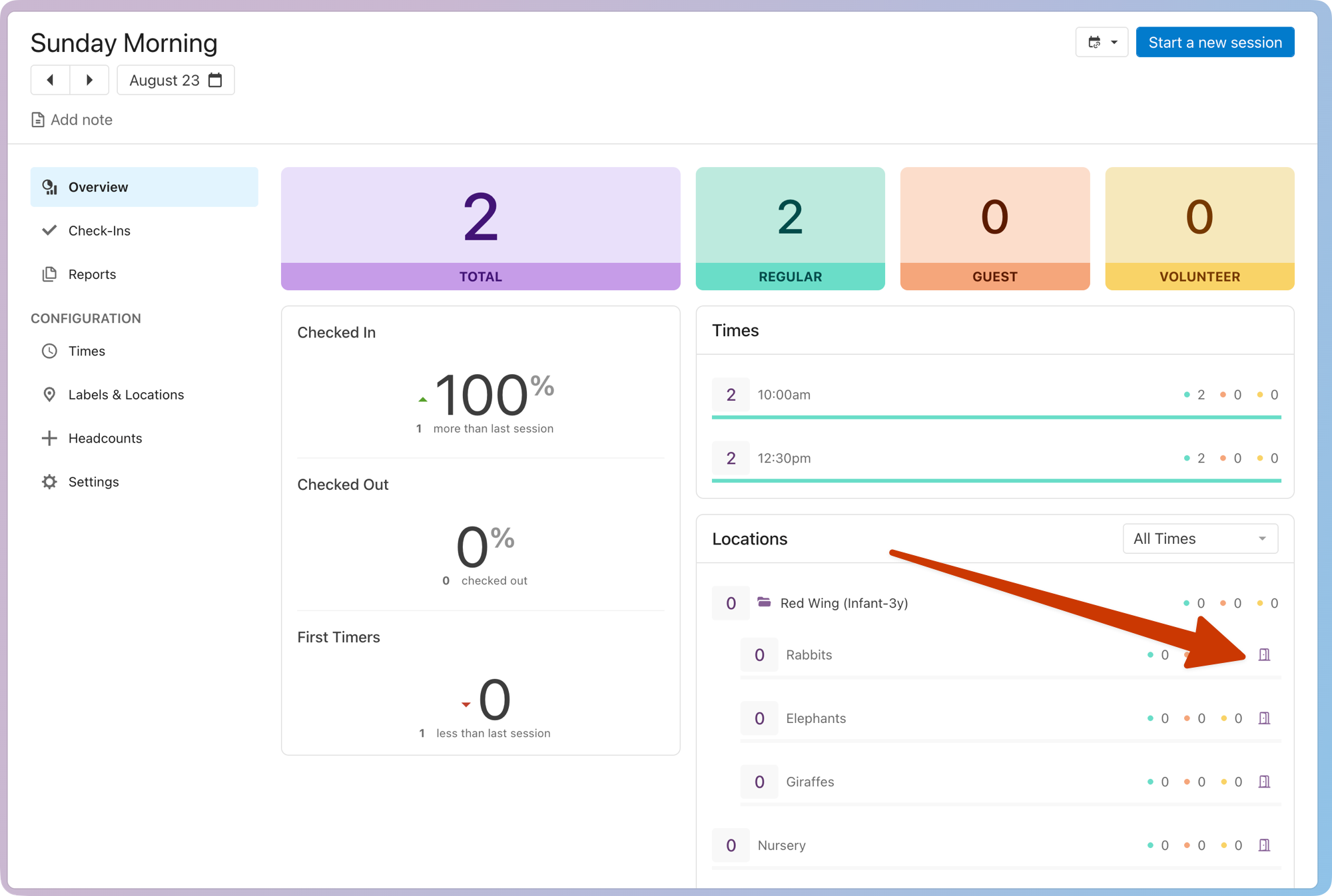
The Overview tab shows you how many people are checked in for this session.
Select the Events page from the top navigation in Check-Ins.
Select an event from the list.
Select the Overview tab from the left sidebar.
You can see the total number of check-ins, as well as the number of check-ins broken down by percentage, type, time, and location.
(Optional) Select the 🚪door icon to the right of a location name to close that location.
Use the Check-Ins tab
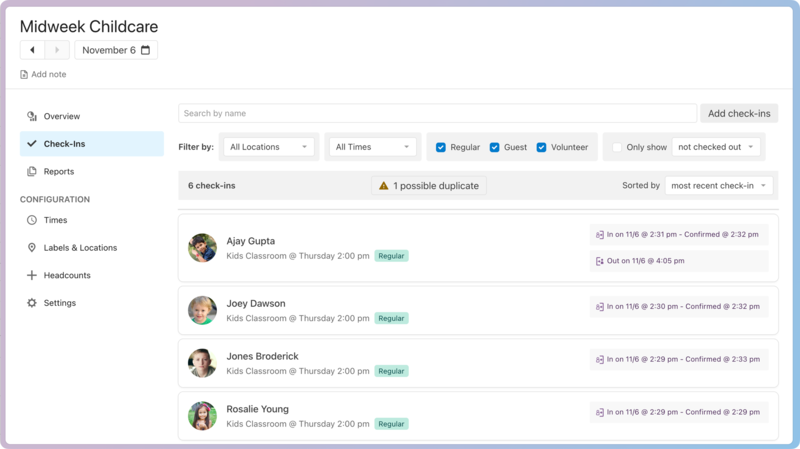
The Check-Ins tab shows you the total number of check-ins and allows you to filter and sort the list to find those who have checked in. If the main numbers don't match, it could be because a person was checked in multiple times. Checked-out people are grayed out on the list.
Select the Events page from the top navigation in Check-Ins.
Select an event from the list.
Select the Check-Ins tab from the left sidebar.
(Optional) Filter and sort check-ins using the options at the top of the list:
Filter by location or time: Use the All Locations and All Times dropdowns to filter and verify that those listed in that location are correct.
Filter by type: Select and deselect the Regular, Guest, and Volunteer checkboxes to filter the list to only the types you need to see.
Tip
If a self station shows an alert about not enough volunteers, your volunteers might be checked in as the wrong type. From the Check-Ins tab, filter the page to the location and find those who checked in with the wrong type.
If the volunteer is checked in as a Regular, you can update their check-in to Volunteer.
If the volunteer is checked in to a different location, you can update their check-in to the correct location.
Sort check ins: If you want to remove duplicates, change the sorting view to first or last name using the Sorted by dropdown in the top right. This view can help you find people who have been checked in twice.
The sections below explain how to update check-in information on the Check-Ins tab.
Add check-ins
While the best way to add check-ins is from a station, you can manually add check-ins on the event's Check-Ins tab. See the Add Check-Ins to a past session article to learn more.
Update an individual check-in
If someone is checked in to the wrong location or type, you can update their information without having to check them in again. In addition, if you want to delete a check-in because it's the wrong person or a duplicate, you can do that from the individual check-in.
Update the location or type
Select the Events page from the top navigation in Check-Ins.
Select an event from the list.
Select the Check-Ins tab from the left sidebar.
Select a person's name from the list to open their check-in page.
Scroll down to the Times & Locations section to update the check-in's location or type. Your changes are automatically saved.
Check the boxes next to any additional times that apply to this check-in.
Select Regular, Guest, or Volunteer below a time to change the check-in type.
Use the dropdown below a time to choose a new location for this check-in.
Important
If you need to reprint a label, you must do so from a station once you've changed its location or type.
Delete a duplicate check-in
Warning
A deleted check-in cannot be restored. If you need to add this person's attendance back into the session, you'll need to check them in again.
Select the Events page from the top navigation in Check-Ins.
Select an event from the list.
Select the Check-Ins tab from the left sideba.
Select a person's name from the list to open their check-in page.
Scroll to the bottom of the individual's check-in page and select Delete Check-In.
Select Yes, delete it from the confirmation popup.