
Edit Church Center navigation
You can add custom pages or URLs to the Church Center navigation to help people discover them! Organize your navigation so the pages are listed in the order you want them to appear on Church Center.
While customizing the navigation, you can safely edit until you're ready to make it live on Church Center. Use the Save draft button while you work, and then when you're prepared to publish all of your changes, use the Save & Publish button.
Want to watch a video before you get started? No problem! This eight-minute video demonstrates the concepts in this article in action.
Where does the navigation menu appear?
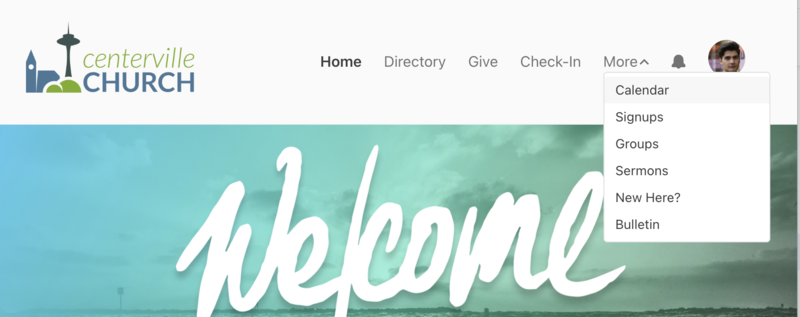
In Church Center web, the navigation between Church Center pages is located at the top of each page.
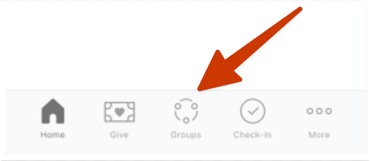
In the mobile app, the navigation is located at the bottom of each page.
Add a navigation item
Add a new page or URL to the navigation so it's visible on Church Center.
Select the Customize page from the top navigation in Publishing.
Select the Add item button.
In the Add item sidebar, type the page name or paste the URL in the search box labeled Search or paste a link.
Select the page from the dropdown.
In the Label section, enter the page title that will show in the Church Center navigation.
In the Icon section, choose an icon for the page from the dropdown.
To finish, select either the Save draft or Save & Publish button at the top of the page.
Tip
If you use a product other than Planning Center Giving for donations, add it as a navigation item with a URL to that giving platform.
Reorder navigation items
The top navigation in Church Center displays four pages, with any additional pages accessible by selecting More.
You can manage what is displayed in this navigation when editing the order of your navigation items in Publishing—the first four items on the Navigation tab are visible in the main Church Center navigation, and the items in the More (navigation overflow) section will be available in the Church Center More menu.
Select the Customize page from the top navigation.
Drag and drop items to reorder them.
To finish, select either the Save draft or Save & Publish button at the top of the page.