
Create room setups
Create specific room setups that requesters can choose from when requesting a room. Room setups give direction on how a room layout should look for an event.
Link a room to a shared room setup
To link a room to an existing shared room setup:
Select the Rooms page in the top navigation.
If you have multiple folders, select the folder containing the room you'd like to edit.
Select a room from the list to open its settings page.
In the Room Setups section, select Link to shared room setup.
Choose the shared room setup you'd like to link this room to.
Create a room-specific setup
If you have a setup that only pertains to a particular room, create a room-specific setup.
Select the Rooms page in the top navigation.
If you have multiple folders, select the folder containing the room you'd like to edit.
Select a room from the list to open its settings page.
In the Room Setups section, select Add new setup.
Enter your new room setup's details in the popup:
Name: Add a name for the new room setup.
Description: Add a brief description so event creators know more about the setup.
Diagram: Select Choose File to upload an image of the setup.
Tip
Use the image sizing guide to upload the correct size and file type.
Suggested Resources: If certain resources are frequently booked as part of a setup, add them as suggested resources.
Search for a resource using the search field or select Browse to look through all of the resources in your account.
Select Save to create the new setup.
Choose a setup at reservation
When requesting a room for an event, you can choose a setup option from the room's Setup tab.
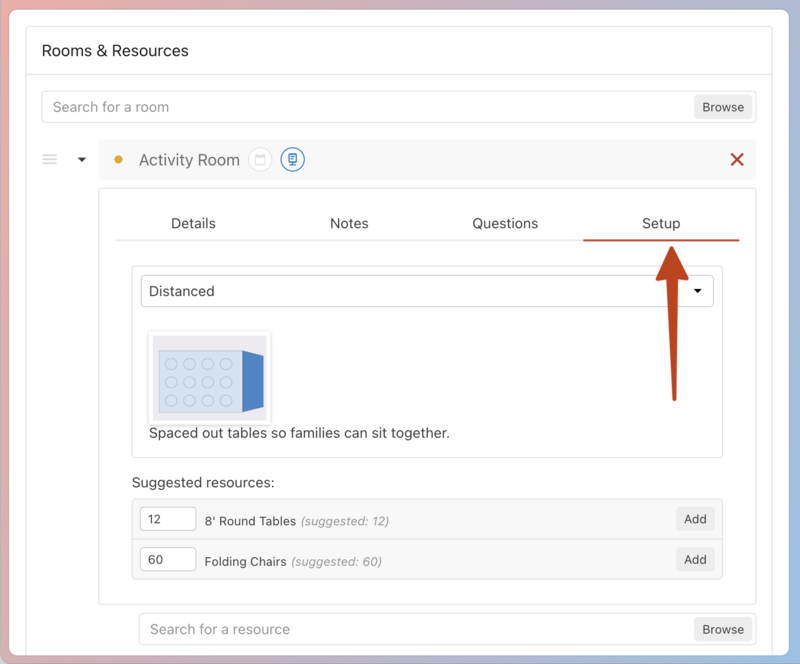
Use the dropdown to select a room setup.
If there are suggested resources, adjust the quantities and select Add next to each resource to add them to the event.
Important
If a resource is unavailable, a warning icon will appear next to it. It can still be requested, but it will create a conflict.