Connect to an external display
You can connect Music Stand wirelessly to an external display, like a TV, so everyone can see the same screen.
The external display shows two pages at a time and is synchronized with the content on your device.
Your music will remain visible even if you return to the plan screen to make changes.
Changes will update live to your TV when you tap Done.
Connect an Android device
Important
This feature requires Android 4.4 (KitKat) or later.
Google Cast is only available on devices that run Google Play Services. If you're using Amazon device, Google Cast will not be available.
To connect wirelessly on Android, you must have either a Chromecast or an Android TV connected via HDMI to your display. The Android device connects wirelessly to the cast receiver, which then displays your music on the TV.
To connect on an Android device:
Tap the menu icon (three horizontal lines) in the top left to open the sidebar.
Select the Plans tab.
Select a plan date from the list to open it.
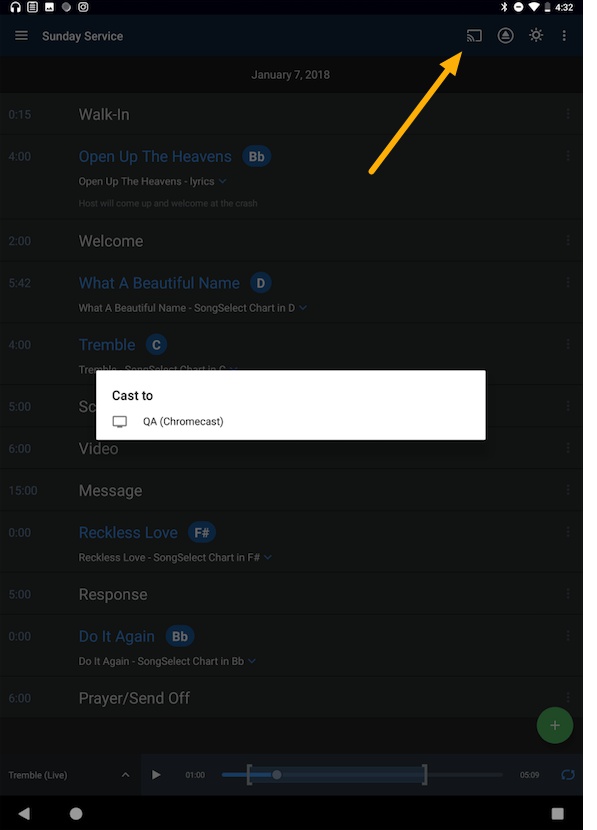
Tap the cast button in the top right of the menu bar.
Important
If you don't see the cast button, your device and cast receiver are probably not on the same WiFi network.
Choose a cast receiver from the popup.
When you're ready to stop casting, tap the cast icon in the menu bar.
Connect an iPad
Before connecting your iPad to the TV streaming device:
Make sure the device is connected to the TV's HDMI port.
Connect both the streaming device and the iPad to the same Wifi network.
If you're using a streaming device other than Apple TV, such as Roku or Chromecast, you may need to install a separate app on your iPad.
Follow these steps to mirror the screen from the iPad to the streaming device.